Guides/Captions and voices
Clean up a voice
Three switches in the Audio tab take the room out of a recording and bring it to a broadcast level. Plus the fun ones: chipmunk, robot, telephone.
Select a clip with sound on the timeline and open the Inspector’s Audio tab. Its Sound section runs top to bottom: Volume, Fades, Pitch, Speed, then Treatments and the audio effect chain.
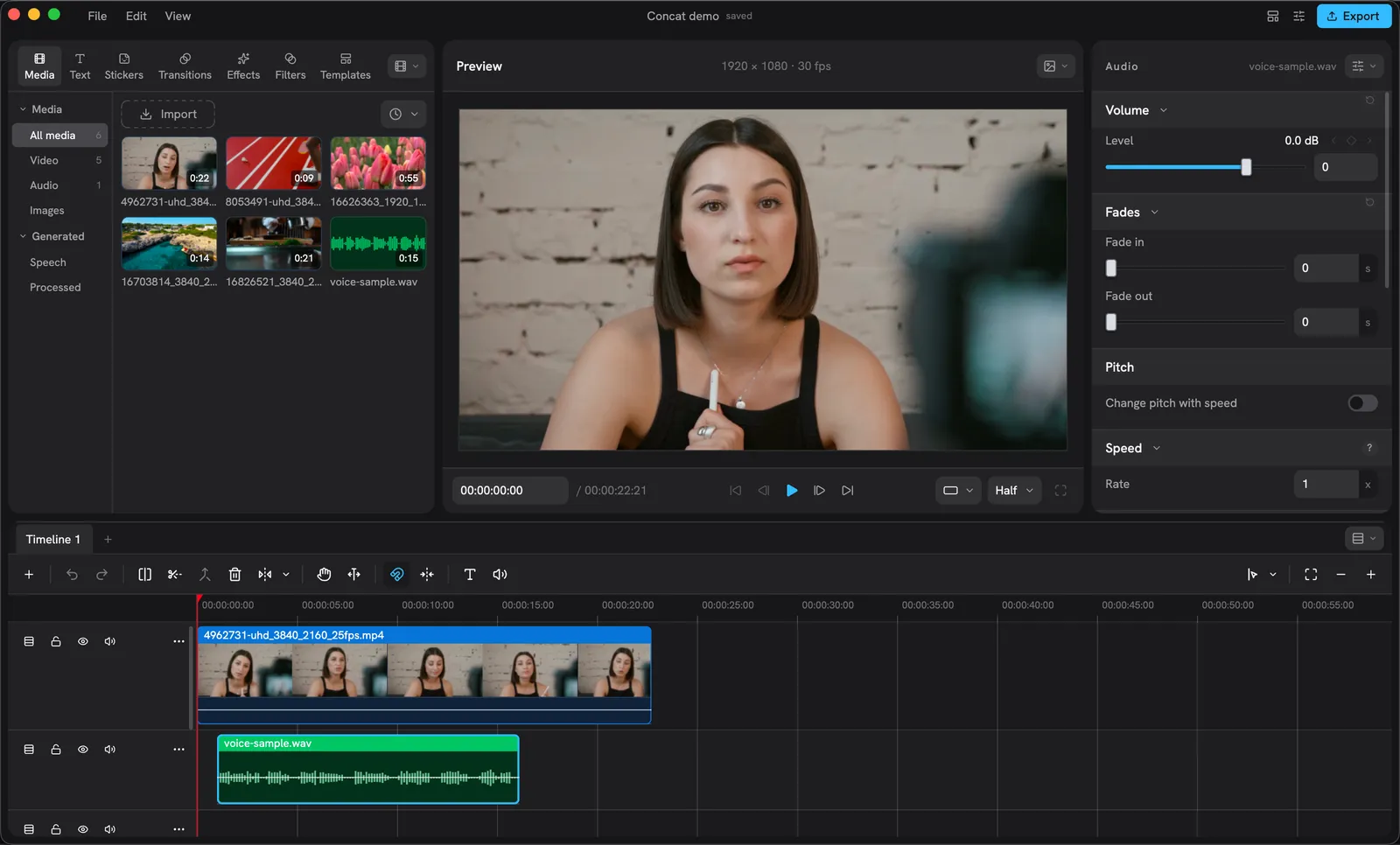
The Audio tab. Treatments and the effect chain are further down.
The three treatments
Each is a switch with a line explaining what it does:
- Normalize loudness: brings the clip to a broadcast level without riding the fader. Turn this on for every voice track and stop worrying about levels.
- Reduce noise: takes the room’s hiss and hum out from under the voice.
- Enhance voice: lifts speech out of the mix, a little presence, a little control.
They need no model download and apply as the clip plays. All three on is the one-switch cleanup the README promises.
Volume without the inspector
Every clip with sound wears a thin horizontal line at its level on the timeline. Drag it to set the volume; it snaps at 100 percent and the drag is one undo step.
The volume of several clips at once
Select two or more clips that all have sound (audio clips, or videos with sound) and the Inspector shows only the Audio tab with the volume. Set it and every selected clip takes that level, as one undo step. A clip whose volume has keys keeps its ride: the whole ride moves by the same number of decibels, so the level at the playhead lands where you set it and a fade stays a fade. Clips on locked tracks are left alone. On a phone, the clip strip’s Audio does the same for the selection.
The effect chain
Under the treatments is the clip’s audio effect chain and a library to pick from. The Library pane’s Effects page lists the same ones under Audio Effects, grouped by category:
- Voice: Chipmunk, Deep, Robot, Telephone, Megaphone, Whisper, Sweet, Radio, Lo-fi, Vinyl, Underwater, Pitch.
- Space: Room, Hall, Plate, Cathedral, Stadium, Echo.
- Tone: Bass, Treble, Bright, Distorted.
Click one to add it to the selected clip. The chain runs top to bottom; reorder with the chevrons, bypass one with its eye, and dial its knobs underneath. A knob with a diamond can be keyframed.
Pitch and speed
Rate re-times the clip in place, so the timeline length changes with it; trim afterwards. Change pitch with speed is off by default, so a sped-up voice stays at its pitch; turn it on for the chipmunk-by-speed effect.